Hive Mind
Tools for Possibilities: issue no. 207
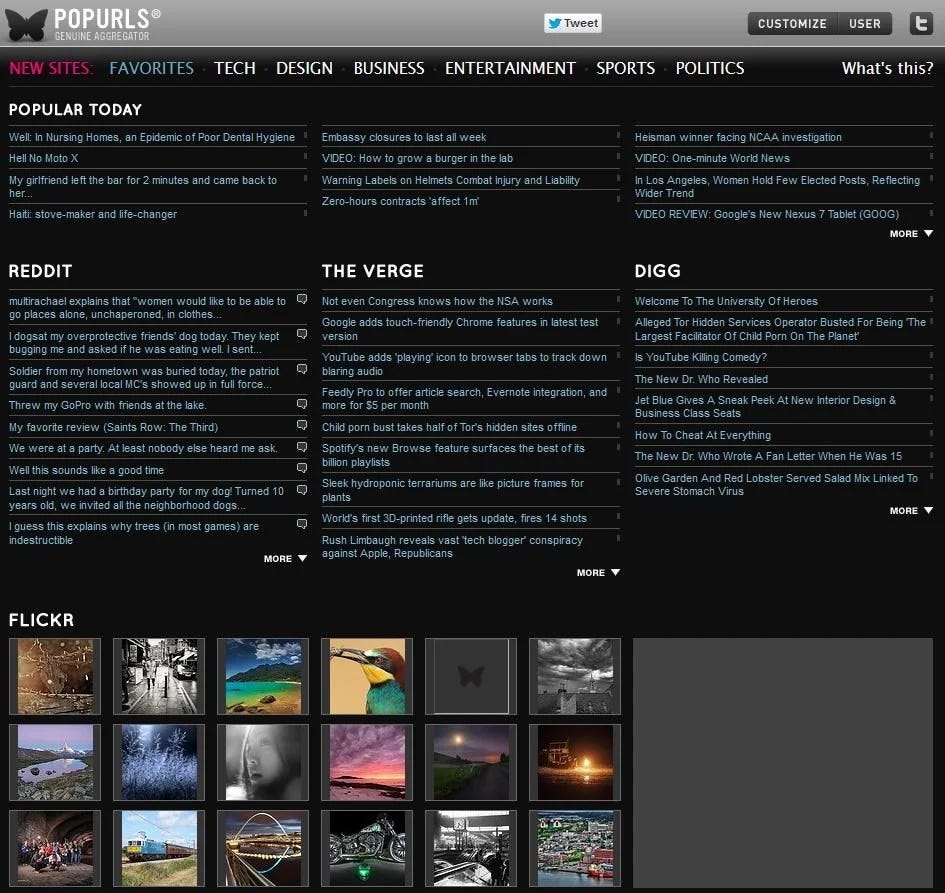
Dashboard for the hive mind
For the past 8 years Popurls has been my daily first stop on the web.
This single page now replaces my need to directly read Digg, Reddit, Delicious, Furl, Slashdot, BoingBoing, NewsVine, Metafilter and all the others that I subscribe too. This one page encapsulates up-to-the-minute headlines from 15 consensus filters, and top thumbnail images from the social sites Flickr, YouTube, and Google Video. The hive mind on one screen.
Here’s how I use it. On one page I can scan the latest headlines of what the web collectively thinks is either popular or interesting. A simple mouse over the headline will cleverly reveal a small box of expanded text on the article. If I want even more, a click will open the original entry in the filter. In five minutes I can scan 18 social site sources thoroughly. I get an excellent feel for what is new and what is worth following up (a small amount of overlap between sources helps).
The design of PopUrls is brilliant. There’s two flavors, black on white or white on black. Function drives form, buttons are minimal. It feels like a well-designed command post for a concise debriefing. Even on a large screen, like the 21-incher I use, there’s a bit of scrolling. But I’ve come to realize that I MUCH prefer this single fixed sheet to endless RSS feeds in a reader. In fact, the page is essentially an improved interface for multiple RSS feeds, which keep PopUrls constantly updated. The dashboard doesn’t move, while all the streams flowing into it keep it lively.
There’s no better way to watch the hive mind. — KK
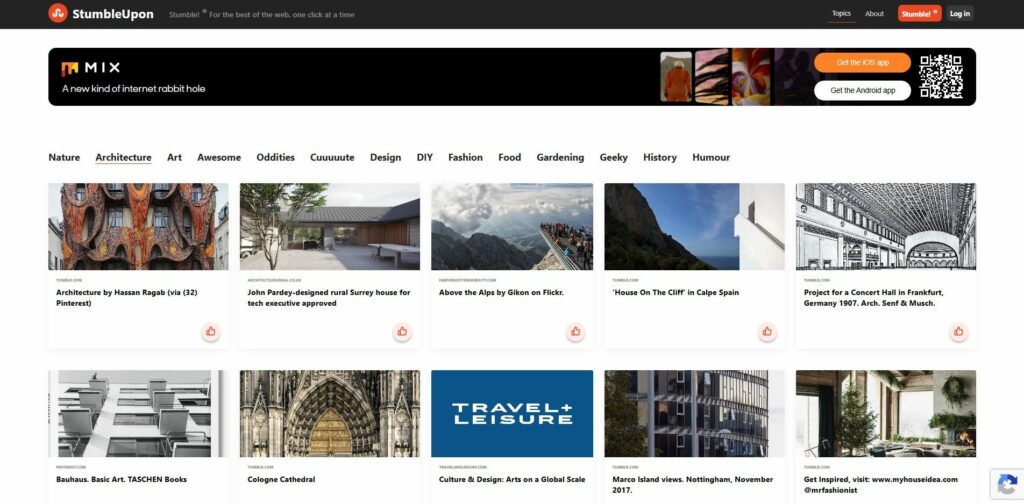
Customized search
Stumble Upon is a community-based website recommendation engine that serves up fantastic random websites. Completely addictive, it still does that. But now that they have added search (including video and image search), it has moved from frivolous to useful, and Stumble Upon is beginning to replace Google as my primary search engine. You cannot yet add Stumble Search as the primary search engine in your browser, but the Stumble Upon tool bar makes it nearly as convenient.
Let’s say you are looking for a new dining room table. If you put “dining table” into Google you get a gazillion crappy tables. If you put the same search entry into Stumble Upon you get 100 of the coolest tables on the net. The same is true in its video and image search engine. For instance, when I wanted to find a video for my wife who was learning Roller Derby, I searched You Tube and got thousands of results, almost all of them below mediocre. But when I searched Stumble Upon Video I got only 10 results, and all of them were awesome.
The key to the system is that for every site that you “stumble upon” in your web surfing, you can give it a thumbs up or down (or tag or comment it). Really cool content propagates through the network fast, yet people trying to game the system to give their pages high stumble ranks get voted down very quickly. When I met the founders of Stumble Upon recently I asked how they managed to do this so well, and they said that they did not write a single line of code until they had worked out the anti-spam strategy. While there are several recommendation engines on the web like Digg, Delicious, and Reddit, Stumble Upon’s interface, huge active community, and easy tools make it the one that always delivers the highest level of cool stuff. It is basically how I find everything that I blog about. — Alexander Rose
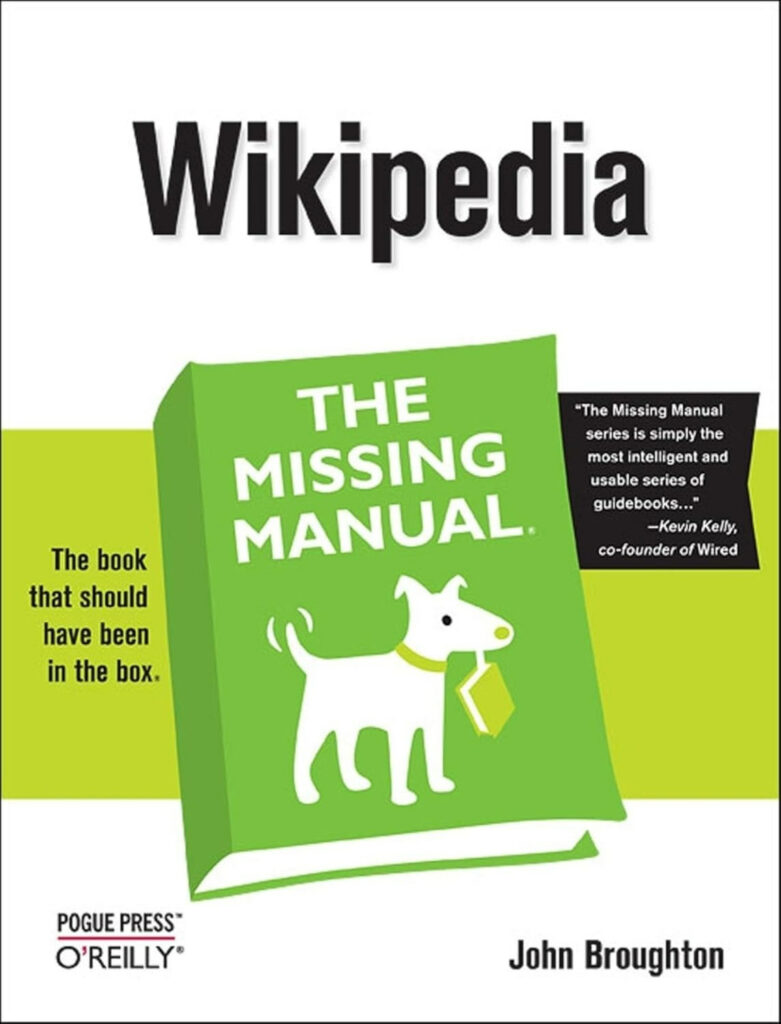
Guide to the collaborative encyclopedia
Just because anyone can edit Wikipedia doesn’t mean it’s easy. Sure, you can edit anonymously and say anything you like, but if you want to make edits that last and if you want to participate in a meaningful way that complies with community guidelines, well, there’s a lot to learn. Guidelines can be hard to find on the site, and for better or worse, they’re always evolving.
As the pull-quote on the cover of this book indicates, Cool Tools has previously-recommended other Missing Manuals from O’Reilly. Like the other books in the series, Wikipedia: The Missing Manual is logically structured, includes lots of screen-shots, and is infinitely skimmable. A great introduction and a handy reference, the manual starts out with the basics: editing, creating articles and maintaining them (yes, that’s just the start). More advanced topics include collaboration, advanced formatting, broader site structure, and interface customization.
Documentation at the website is not particularly searchable given the site’s relatively simplistic one-box-fits-all search interface; browsing through documentation and discussion can be difficult and, frankly, overwhelming. In addition to the quite readable, cover to cover flow, the book has a comprehensive index that allows for quick navigation that delivers precise answers to the myriad questions that inevitably arise, especially when you’re just getting familiar with this medium.
Make no mistake, community consensus is always the last (ever-changing) word. But John Broughton, who has also overseen the Editor’s Index to Wikipedia project, can help you ease into editing without committing any major blunders.
The Manual has been migrated to Wikipedia. Checkout the dynamic incarnation at Help:Wikipedia: The Missing Manual. — Camille Hartsell
- Wikipedia’s rate of change has presented a challenge in writing this book. It’s as current as it can be, but if you notice that a screenshot isn’t exactly the way Wikipedia appears to you on screen, the something (minor) has changed since just before this book was published. You will see mentions in a number of places in the book about where change may be just around the corner (a WYSISYG edit box, threaded discussions on talk pages, single sign-in across all Foundation projects, and more). These changes could happen just as you’re reading this book, or not for a year or two.
Nevertheless, you’ll find the core of Wikipedia changes very slowly–after all, it does have an established base of active editors, and a history of success that makes editors reluctant to chance processes that aren’t considered broken. So the changes that aren’t covered by this book won’t prevent you from gaining great Wikipedia editing skills. - You don’t need to know everything about Wikipedia to edit an article. Wikipedia has literally hundreds of pages of policy, guidelines, and how-to information on topics such as capitalization, categorization, citations, copyrights, disclaimers, foreign language characters, headings, indentation, links, lists, neutrality, pronunciation, quotations, tags, and templates, to name just a few. If you don’t get something exactly right, don’t worry–no one else gets everything right every time either.
You don’t need to know everything about your subject to edit an article. If you add something that’s constructive and 90-percent right, that’s far better than not doing an edit at all. As in sports, you don’t need to hit a home run or score a goal on every play to be a valuable contributor. If you don’t get something exactly right, someone else is likely to come along and help by fixing or finishing it.
You can contribute without editing at all. if you see a problem in an article, but you don’t (yet) know how to fix it, or you do know how to fix it, but you can’t edit the article (some articles are fully protected, typically for short periods of time), you can still help by posting a constructive comment on the article’s talk (discussion) page. If you don’t want to or can’t edit an article directly, you can still help to improve it. - A second role of WikiProjects is to maintain portals, mini-Main pages which are entry points for particular topics. … Note: If you want to search for text or information on a portal page, you need to modify your search to include the namespace Portal, because the normal Wikipedia search is only for information on article pages (pages in the Main namespace). You can do this by modifying your search on the Wikipedia search page by checking the box for the Portal namespace, after doing an initial search to get to the main search page. Another is to change your preference sos that your searches automatically include both mainspace and portalspace.
- The phrase “For factual and other kinds of questions” means that the Help desk is not the place to look for information contained in encyclopedia articles. For questions like, “How long do butterflies live?” use the search box to find the article Butterfly, which probably contains the answer.
Some questions aren’t answered in articles because they’re not really encyclopedic, like “What’s a good camera to buy for someone who wants to be a professional photographer?” Take those questions to the Rference desk (shortcut: WP:R), which is similar to a librarian service (and another place to put your question-answering expertise to good use). - What you see in the Wikipedia window in front of you isn’t fixed in concrete. Wikipedia has a surprising number of ways that you can modify its appearance when you view it. If you’re a registered editor, you have a My Preferences page, where you can change a number of settings that control how Wikipedia’s pages look on your screen.
- In late 2007, Wikipedia added a new, eleventh tab to the My Preferences page– the Gadgets tab. … The Gadgets tab lets you quickly implement JavaScript user scripts developed by other editors to add cool new features to Wikipedia. Chapter 21 describes how to implement JavaScript user scripts by copying them to a page in your userspace. Using the Gadgets tab is much easier; just select a gadget, and then click Save. Then, as the instructions at the bottom of the tab say, bypass your browser cache to see the gadget’s effects. … You can get more information about each item on the Gadgets tab by looking at the Special:Gadgets page.
Once a week we’ll send out a page from Cool Tools: A Catalog of Possibilities. The tools might be outdated or obsolete, and the links to them may or may not work. We present these vintage recommendations as is because the possibilities they inspire are new. Sign up here to get Tools for Possibilities a week early in your inbox.
09/14/26