Wall Mount Thread Checker
Easy-to-use thread verifier for both nuts and bolts
Tools (Recommended):
Nut & Bolt Thread Checker (Wall Mounted)
Tools (Other):
Nut & Bolt Thread Checker by Thread Checker
Tools (Recommended):
Nut & Bolt Thread Checker (Wall Mounted)
Tools (Other):
Nut & Bolt Thread Checker by Thread Checker
A cool tool can be any book, gadget, software, video, map, hardware, material, or website that is tried and true. All reviews on this site are written by readers who have actually used the tool and others like it. Items can be either old or new as long as they are wonderful. We post things we like and ignore the rest. Suggestions for tools much better than what is recommended here are always wanted.
Tell us what you love.
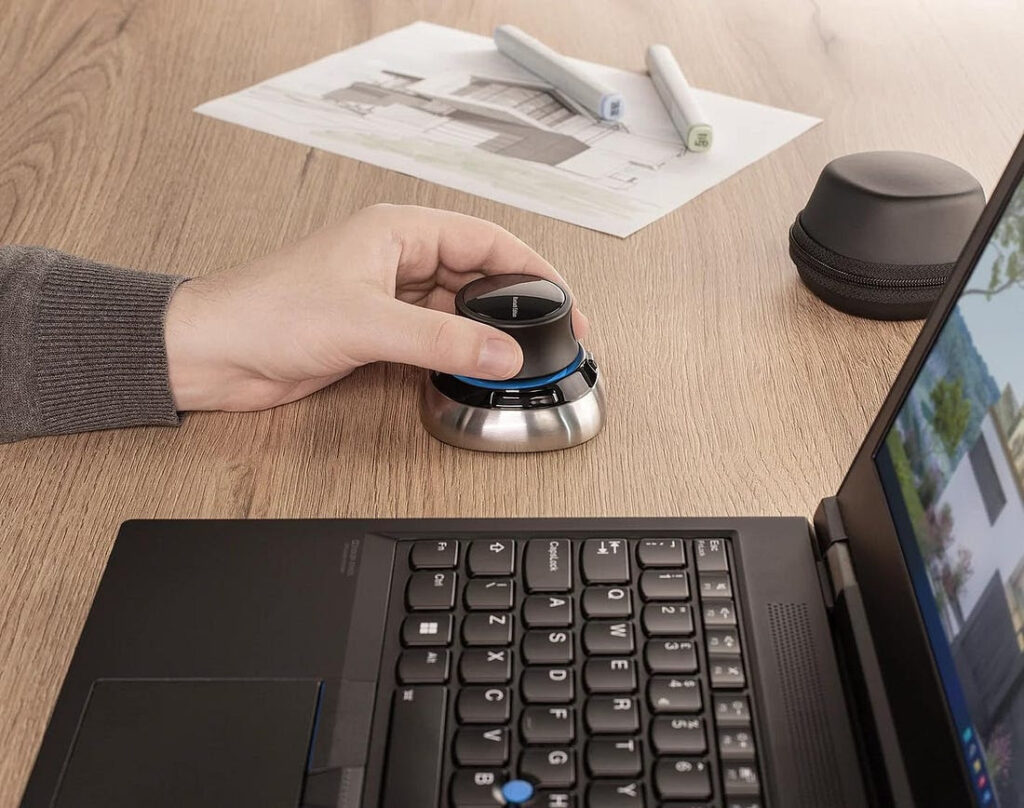
Logitech now sells a low-cost, very high quality, 3D controller called the SpaceNavigator. When I bought mine, you could get an edition for personal use that is only $59 (instead of $99 for the pro edition). This increases Sketchup productivity and fun factor by 2-3 times. If you like SketchUp you have to have this!
The SpaceNavigator is a six-axis controller that you use in conjunction with the mouse and keyboard. With it you can move around the model in three dimensions, intuitively and without changing from one mode to another (e.g. pan to rotate to zoom). You can also configure it to work in what ever fashion is easiest and most intuitive for you. With a little practice you can move through and around the model using the mouse and SpaceNavigator, never touching the keyboard. It provides a huge increase in productivity and, frankly, fun. I’m designing an addition to our house and my kids (6 & 8) have learned to fly through the model without my help. Of course you can use it with other 3D applications, like AutoCAD, Rhino and Maya.
This is one of those things that you purchase and fall in love with because it’s useful, high-quality, and inexpensive. (It works in Windows, Linux, Unix — but not Mac!)— Mike Green

Logitech Performance and Anywhere MX Mice
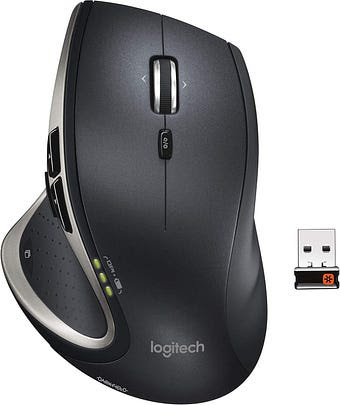
I’ve been using Logitech’s Performance Mouse MX and its former model for about four years. They all have one important feature: hyper fast scrolling. Since I’m an engineer who has to deal with source code files that easily contain thousands of lines, I have to scroll an ordinary mouse hundreds of times to browse a file. With hyper fast scrolling, it only takes one single scroll as the wheel spins with minimal friction. This really reduce the stress on my fingers. It can also easily be switched back to normal scrolling behavior (by pushing down on the scroll wheel) when I’m not dealing those gigantic files. — Jordan Cherng
Similar to Jordan’s Logitech Performance Mouse MX is the Anywhere Mouse MX that I’ve been using for the past two years. Unlike the Performance model, the Anywhere model is significantly smaller, and is easily packed in the included carrying case. Despite the small size, I find it to be one of the most comfortable mice I’ve ever handled which is especially surprising as I have large hands!
Outside of size, the two mice are remarkably similar. Like its bigger brother, the Anywhere Mouse also features “hyper-scrolling” which is very useful when dealing with large documents or long web pages. The scrolling (among other features) is customizable with the included Logitech software (that works for both PC and Macs). Outside of scrolling, they both feature programmable buttons, and most importantly very accurate tracking. Logitech calls their technology Darkfield which they claim is better able to respond to irregularities on a surface (and thus respond more accurately during tracking). I’ve used mine on many shiny surfaces which normally confuse optical mice without any problems, with the biggest surprise coming when I used it on a glass countertop which is normally a no go for laser-tracking mice.
The only other significant differences between the two are that the Performance Mouse can be charged via micro-USB, and that it has a few more buttons for those who want to maximize the customizability of their mice. Both use Logitech’s unifying receiver (which we’ve reviewed in the past) and have excellent battery life. My Anywhere Mouse gets about 4-6 months of use from two rechargeable AAs.
Despite being significantly more expensive than other mice on the market, I have found that these higher end Logitech mice are worth it. They are comfortable and reliable pieces of technology that seem to disappear in use, and for that I’m incredibly grateful. — Oliver Hulland

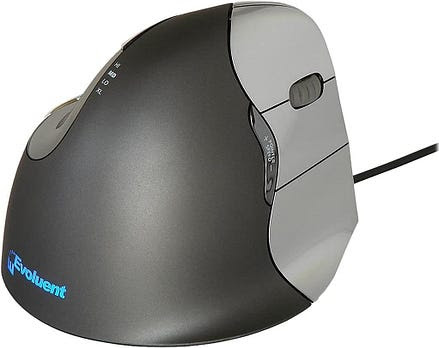
From a relaxed standing position with your arms at your side raise your right hand while holding your elbow still until your fore arm is level with the floor. Spread you fingers apart and rotate your hand until your palm is facing down – keeping your elbow at your side. Now if you are anything like me your hand is rotated about as far as it can. In mechanical parlance, the wrist is “hard against the stops.” When you are using a conventional mouse it is in this rather tense and uncomfortable position that your hand remains. As a designer I often spend days on end at the computer modeling in 3D – left hand on the space ball and keyboard with right hand on the mouse. Over time I began experience a myriad of painful symptoms from fore arm throbbing to thumb tenderness to shoulder aches. These discomforts grew into debilitating pain to the point I wondered if I could continue in my chosen profession. And then I discovered the Evoluent Mouse – and instantly the pain and discomfort tailed away to nothing.
Repeat the previous exercise but this time place your hand in a vertical – hand shake like – position. You will find that your hand is now very relaxed residing as it does pretty close to halve way between hard right rotation and hard left. The Evoluent mouse looks like a mouse turned on its edge with the laser tracking business on the edge of the mouse. This configuration positions the hand and wrist in a basically neutral position thereby avoiding the stresses rotating the hand to a palm down position induces.
I cannot overstate how drastic an improvement this mouse is from all others. Both Microsoft and Logitech make products which rotate the hand partially toward the vertical but these are partial measures and do not afford the total neutral ergonomics provided by the Evoluent. If you are fighting soreness or pain from you mouse arm-hand – please give your body a break and give the Evoluent mouse a try. — Donald Ansley

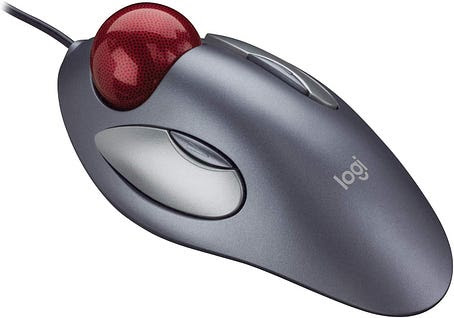
While I’ve always spent a lot of time computing, the precise, all-day cursor movements of professional writing and designing (a recent switch) got me vexed with my previous mouse’s lack of control and an aching wrist. After borrowing a friend’s $70 trackball and enjoying the fingertip control and comfort, I set out to get tracking at the lowest possible cost and highest possible comfort. I settled on the Logitech Marble Mouse.
Shaped like a low, oval hill, this $20* mouse is a nice inverse of the natural curve of a hand. The trackball sits naturally under the index and middle fingers and moves very smoothly. The sizable left and right buttons are situated directly under your thumb and ring finger, while the two smaller buttons above them can be designated for a variety of functions like scrolling and zoom. The symmetry also makes it ambidextrous, which is great for any left/right-handed families that share a home computer.
I did try a few thumb-operated trackballs, but a slight weirdness in my right thumb joint causes some discomfort when I move it a lot. Every time I put my hand on the Marble Mouse, I’m able to keep it totally relaxed. The mouse is large enough for comfort, but still relatively small enough to take on the road. The build quality is solid, and it’s easy to clean. Best of all, my wrist no longer smarts after a long day’s editing.
Bonus: the heavy, low-friction ball makes a nice desk toy when you need a break. — George Cochrane
Once a week we’ll send out a page from Cool Tools: A Catalog of Possibilities. The tools might be outdated or obsolete, and the links to them may or may not work. We present these vintage recommendations as is because the possibilities they inspire are new. Sign up here to get Tools for Possibilities a week early in your inbox.
© 2022