* Talk to me. Tell me a story. Share me a tip. * Support my work by buying my tips books (Vol. 1, Vol. 2). * Take out an Unclassified in this newsletter to reach fellow makers.
Pry Bar Tips and Tricks
Image from Family Handyman
Through an article in Family Handyman on pry bar tricks, I learned of something called an inflatable pry bar. Maybe this is a tool common to others, but I’d never heard of it, and now I think I need one in my life.
Beginner’s Tips for Using an Oscillating Multi-Tool
I recently broke down and bought my first oscillating multi-tool. If you’re also new to this strange-looking type of tool, here are 20 basic tips for getting more out of it. I especially agree with the tip about buying cheap accessories first, finding out which ones you use most often, and then investing in better quality versions. That’s what I did. Here’s a follow-up video on sharpening multi-tool blades. And the Project Farm video he refers to on the best multi-tool blades (TL;DR: Get the EZARC blades, $7.60 each in pack of 3).
Great Collection of Sewing Tips
I am working on a special project that has me going through the archives of Makezine.com. In doing so, I’m unearthing some gems, like all of the sewing tips that were posted over the years by Haley Pierson-Cox and others. Sewing is one of those foundational DIY skills that everyone should at least know the basics of (both hand and machine sewing).
Using a Hobby Polishing/Sanding Tool to Smooth 3D Prints
I have long been a huge fan of the Mr. Hobby Polisher Pro sanding tool. This is a simple (and a bit overpriced) battery-operated disc polisher/sander sold to the hobby market for sanding off sprue material and finishing models. It’s basically an electric toothbrush with a sanding disc head. The Polisher Pro comes with 3 sheets of sanding pads in 600, 800, and 1000-grit. There are 45 pads in all. I’ve had my tool for several years now, use it often in game modeling, and still have plenty of pads left. There are also replacement sanding pads available on Amazon (and there are pads available in other grits). This video introduces a use I hadn’t thought of: sanding layer lines and joins in resin and FDM 3D prints. The video doesn’t have a lot of content beyond that basic idea, but I was happy to discover another use for a tool I already own. I know many will say: Just use a Dremel tool! You can if you have a mini Dremel, but for modeling, this tool is better sized and not as aggressive as a Dremel. And, don’t be like the guy in the video. Always wear a mask when sanding resin and plastic.
The Creative Process in a Nutshell
1. This is awesome 2. This is tricky 3. This is shit 4. I am shit 5. This might be OK 6. This is awesome
This was posted on film/theater director Marcus Romer’sTwitter feed. This is a riff (to put it kindly) of an original list by Kazu Kibuishi. I like the above saltier expression of the idea, but your mileage may vary.
TOYS! Carhartt Work Shirts
For years, I’ve seen other people wearing Carhartt work shirts and for some reason never thought of buying one myself. I recently bought two, one in charcoal and one in denim blue. Man, do I like these shirts! Super well-made, comfortable, nice fabric, rugged, and good looking. And I love the pencil/pen slit in the right pocket. I think these shirt will be my go-to garment forever more. Carhartt work shirts are also available in women’s sizes.
Shop Talk
I got the following message from reader John Baglio. I don’t recall such a playlist crossing my transom, but it sounds great. If this rings anyone else’s bells, please message me.
“I was just thinking back over some of the better engineering videos I’ve seen in the past, and I was thinking of a playlist that I thought I saw in one of your newsletters. It was done by an engineer who I think was either Russian or Israeli and it was a whole series of pieces of wisdom for people fabricating parts. One of the things that I remember him saying was design captive hardware whenever possible. I was wondering if you might remember what that playlist was. If so, is there a way you could either send it to me or posted in one of your upcoming newsletters? I remember it being chock-full of amazing advice for fabricating parts.”
Become a Patron!Support our reviews, videos, and podcasts on Patreon!
Cool tools really work.
A cool tool can be any book, gadget, software, video, map, hardware, material, or website that is tried and true. All reviews on this site are written by readers who have actually used the tool and others like it. Items can be either old or new as long as they are wonderful. We post things we like and ignore the rest. Suggestions for tools much better than what is recommended here are always wanted.
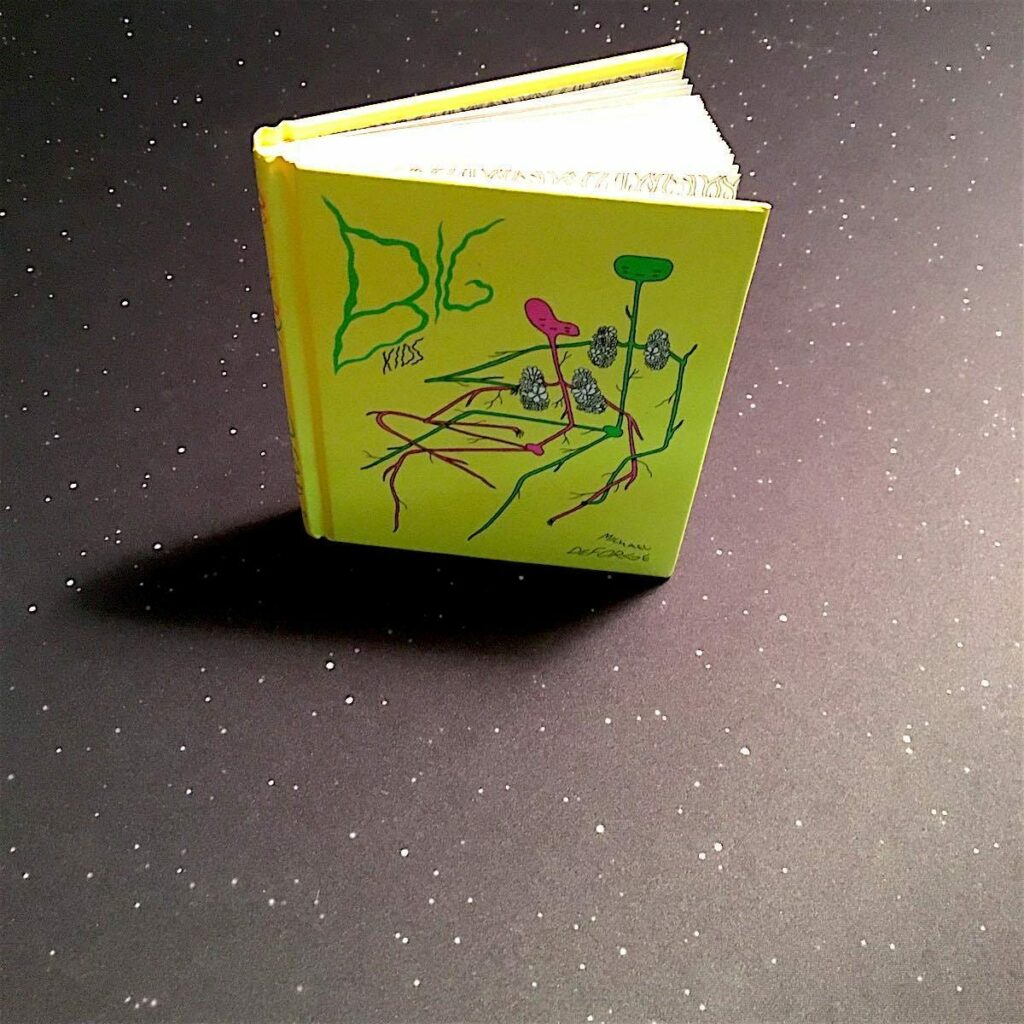
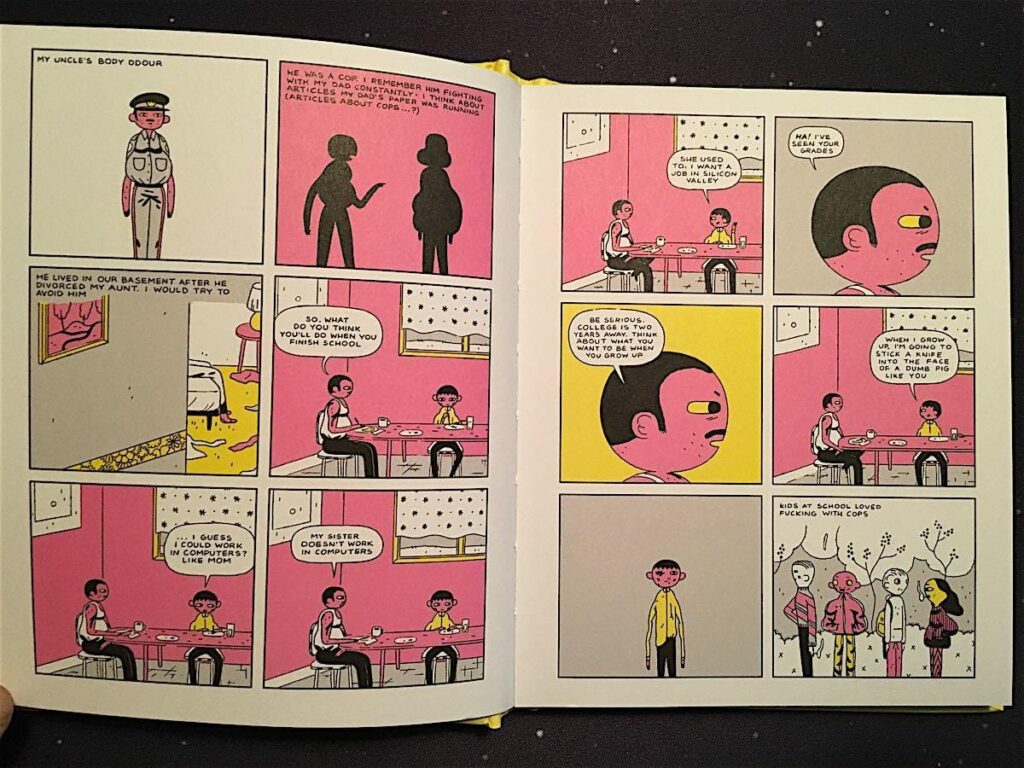
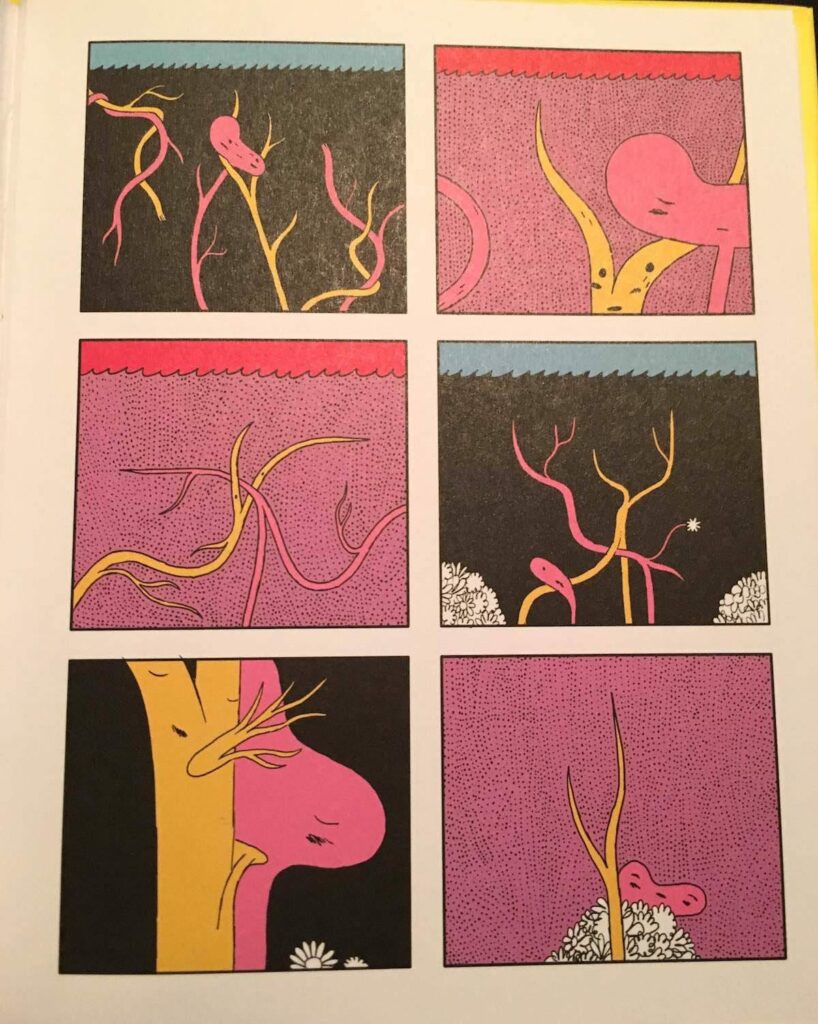
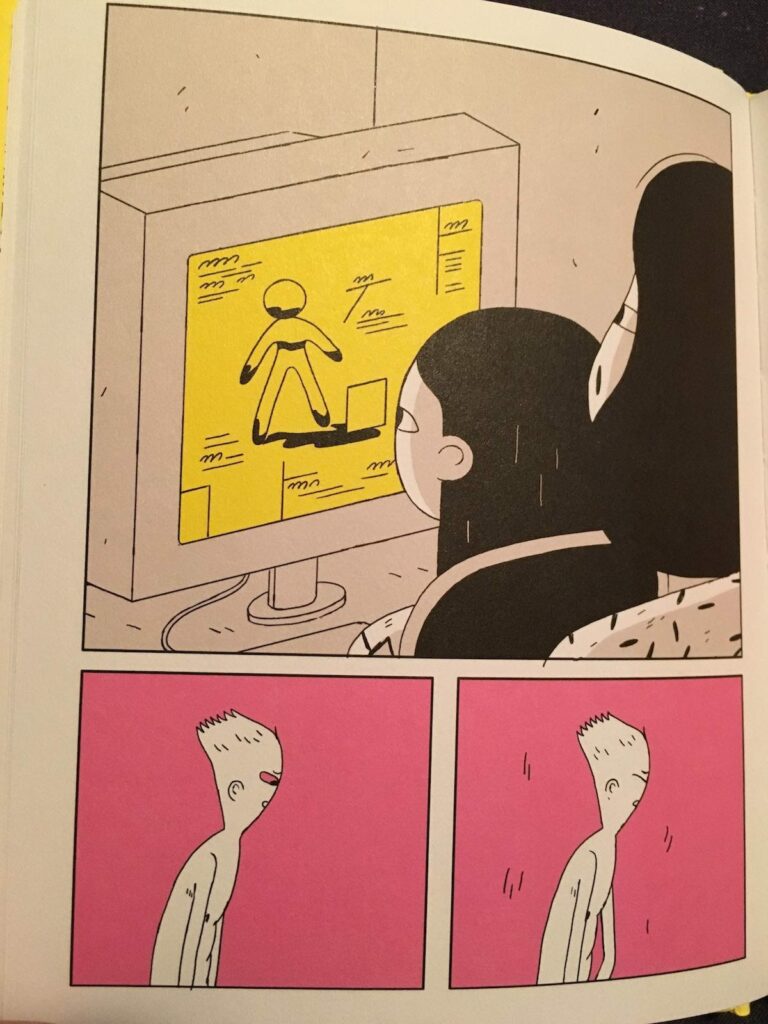
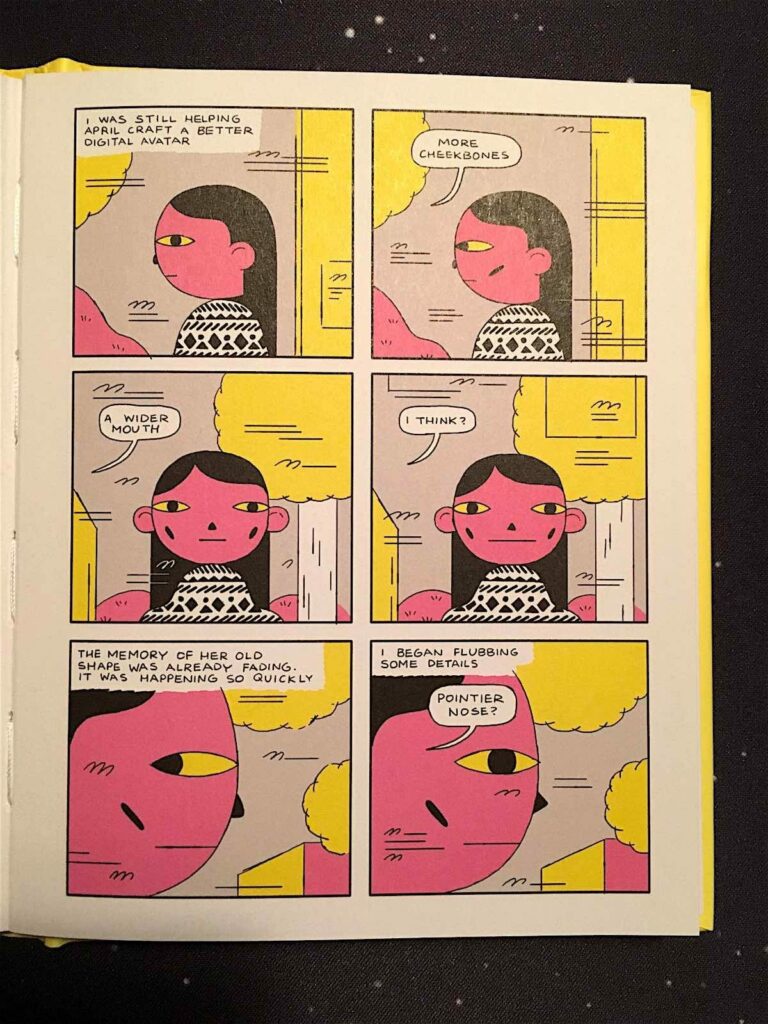
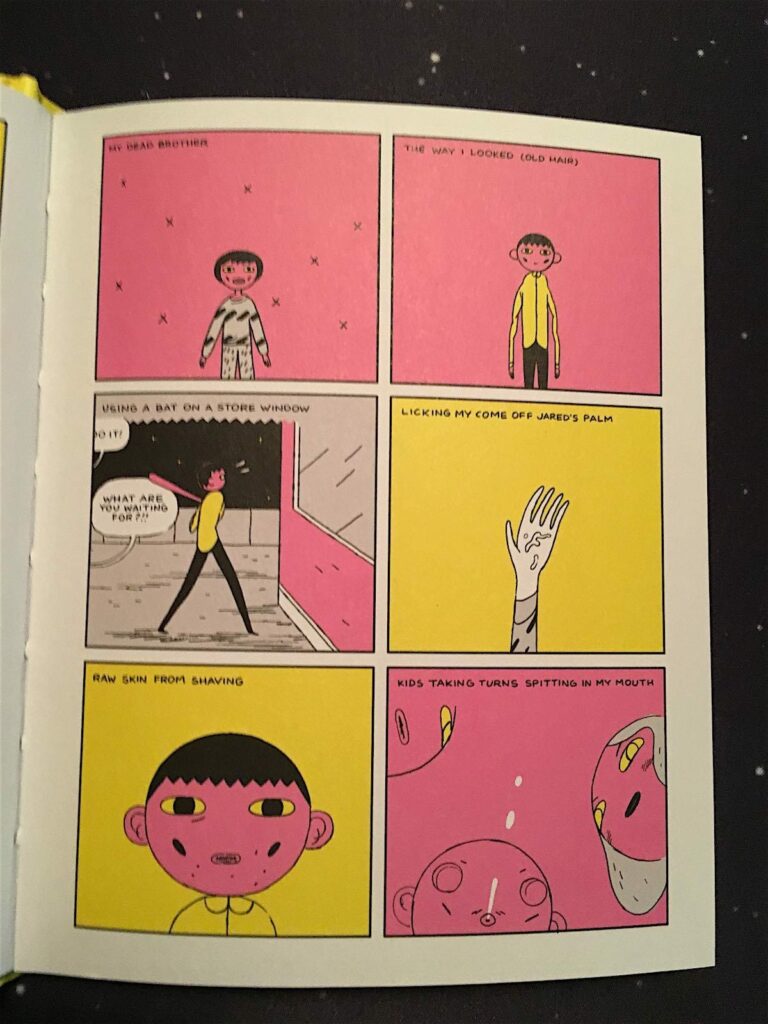
I have been fascinated by the work of Canadian comic artist Michael DeForge for a while now. If you like unvarnished explorations of the human psyche and the high weirdness that an unhinged mind and a free hand can render, check out Michael’s Lose series, Very Casual, and Dressing, all from Toronto-based comics publisher of note Koyama Press.
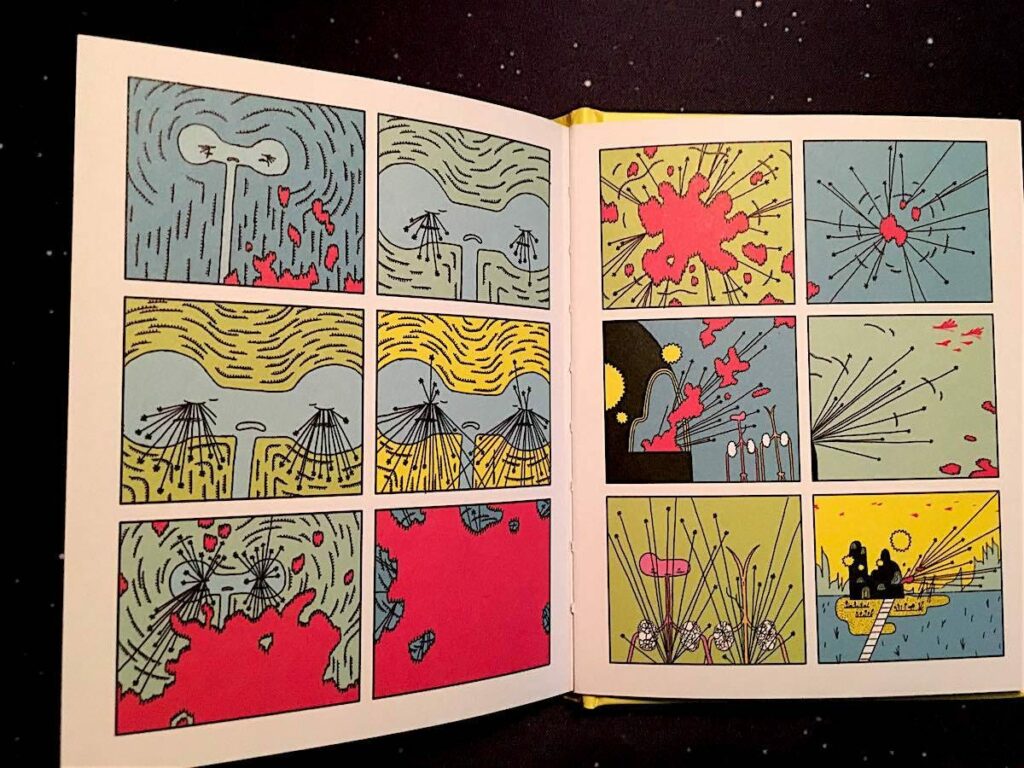
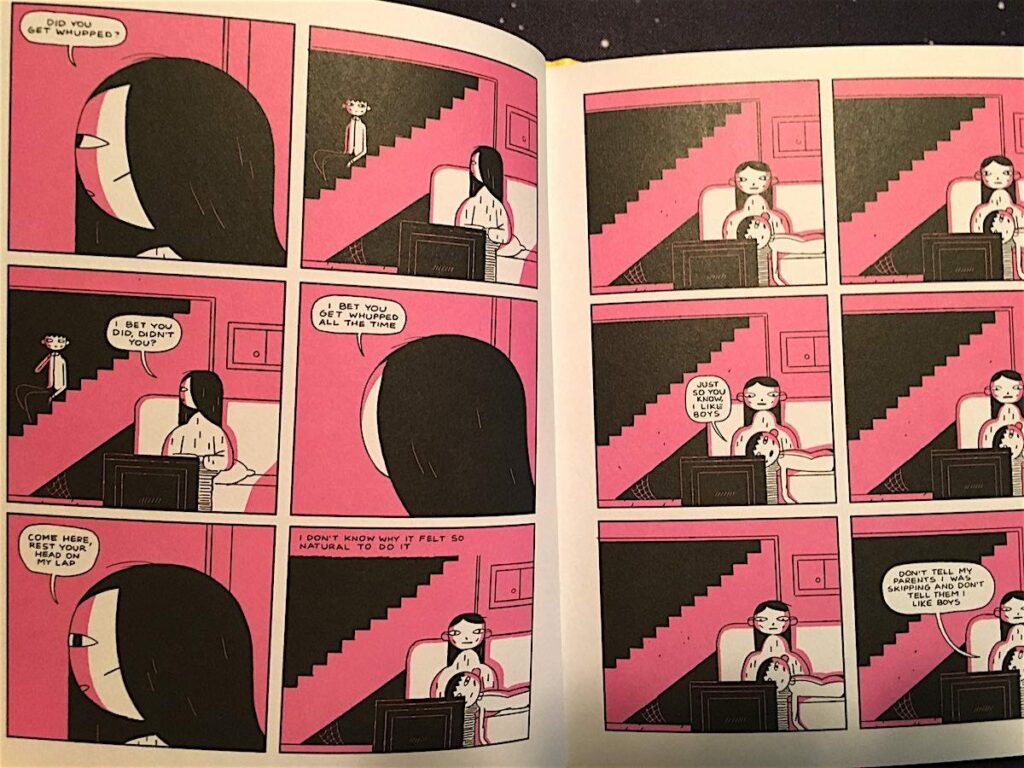
Big Kids is something of a departure for DeForge, or at least it starts off seeming that way. On the surface, Big Kids is a dark and mopey coming-of-age tale. It concerns a troubled teen boy who lives with his parents and a recalcitrant uncle in the basement and has awkward, restless sex with his best friend, in-between dangerous dares, bullying, bouts of petty vandalism, and other adolescent antics.
When the boy’s uncle gets kicked out of the house and a female college student moves in – a girl with a very different take on life who hangs with a group of more sophisticated, less juvenile delinquent friends – something extraordinary happens. Too many other reviews of this book spoil what comes next, which I think is a shame. I knew nothing of what was about to happen and was really stunned by the whole thing as a result. The book is obviously meant to be a meditation on the profound transformations we go through at different stages in our lives (especially in becoming a teen), and how strange, terrifying, and wondrous those changes can be. But this is done in a unique way that you could never guess is coming.
Michael DeForge’s work seems to be all about challenging our perceptions of identity, reality, and the comic form itself. Every time you delve into one of his pieces, you have no idea where you’re going to end up. Or just how splintered your mind will be by the time you get there. Big Kids manages to do all this while still delivering a touching, if somewhat disturbed, take on a classic tale of adolescent angst. – Gareth Branwyn
PRIDE & PREJU-KNITS: 12 GENTEEL KNITTING PROJECTS INSPIRED BY JANE AUSTEN
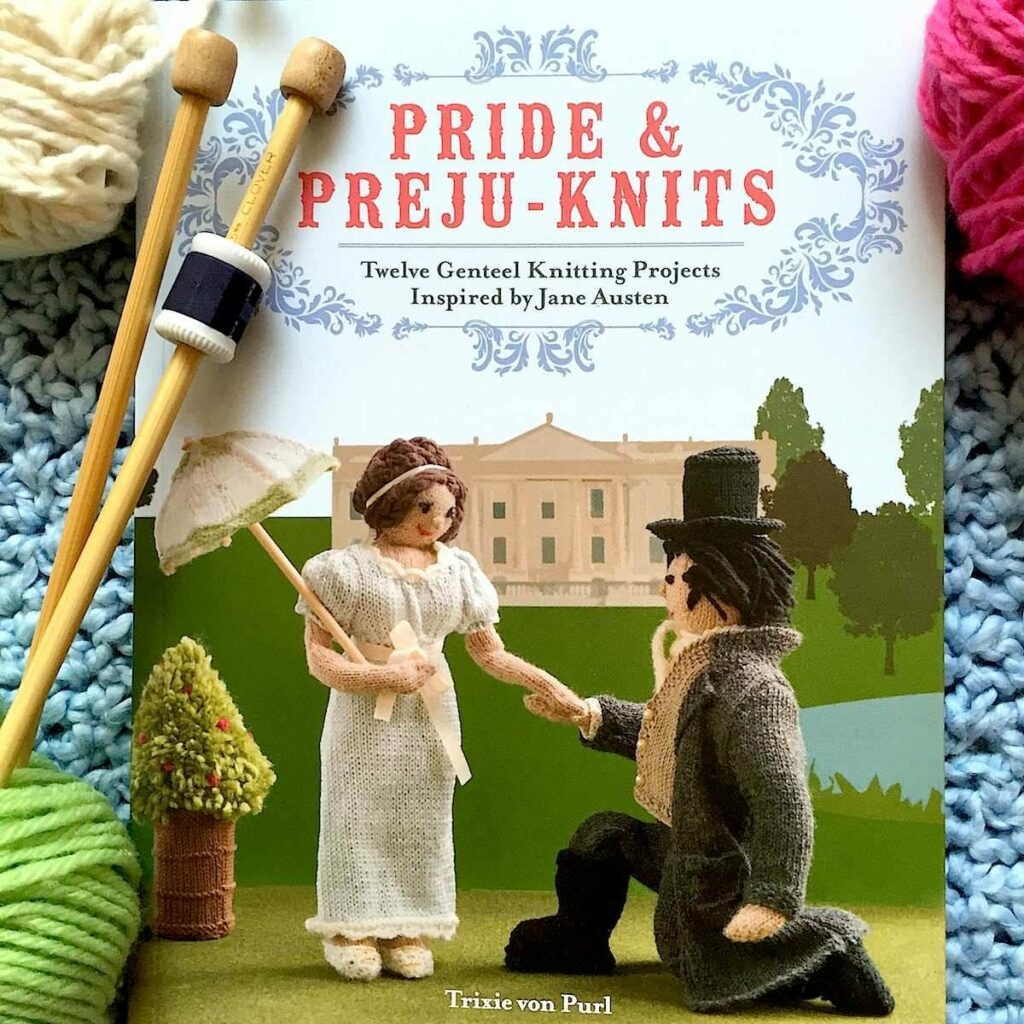
Pride & Preju-knits: Twelve Genteel Knitting Projects Inspired by Jane Austen by Trixie von Purl Harper Design 2015, 112 pages, 8.6 x 6.6 x 0.4 inches (paperback)
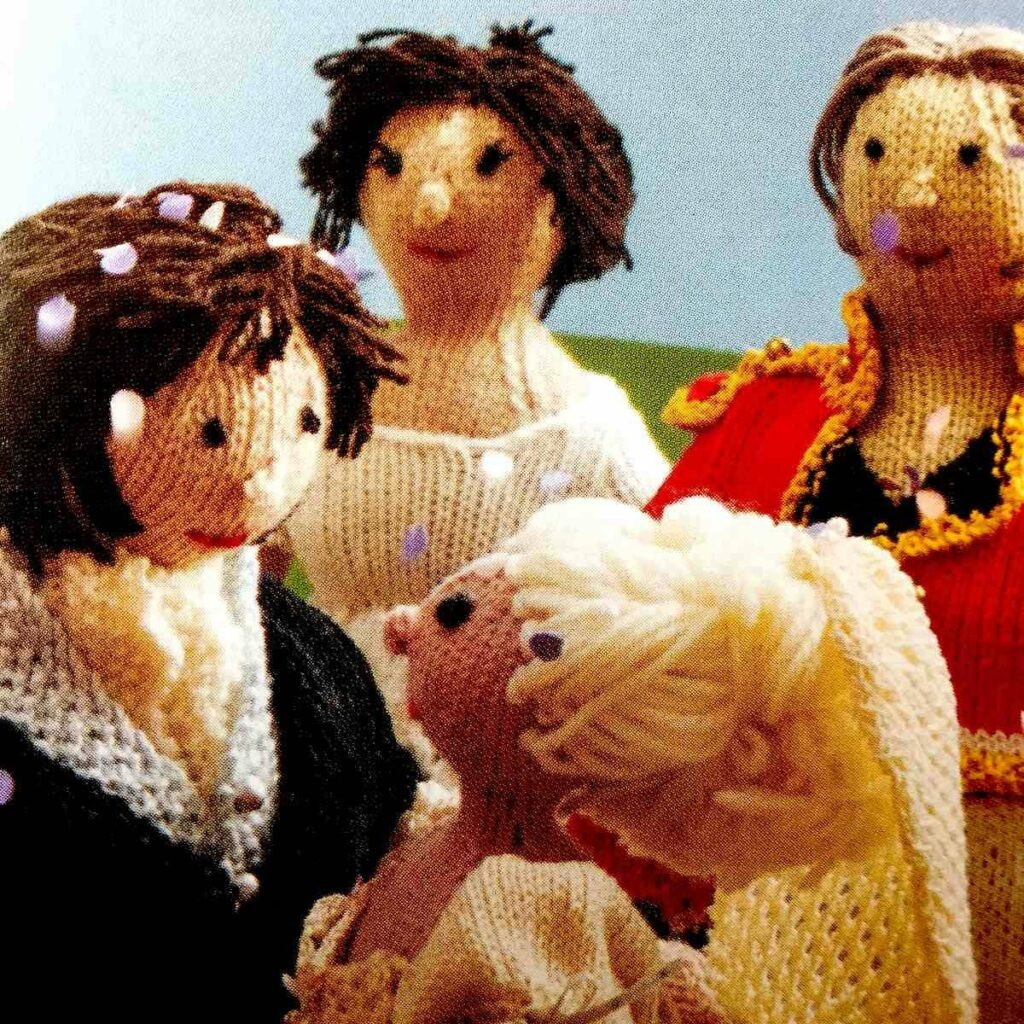
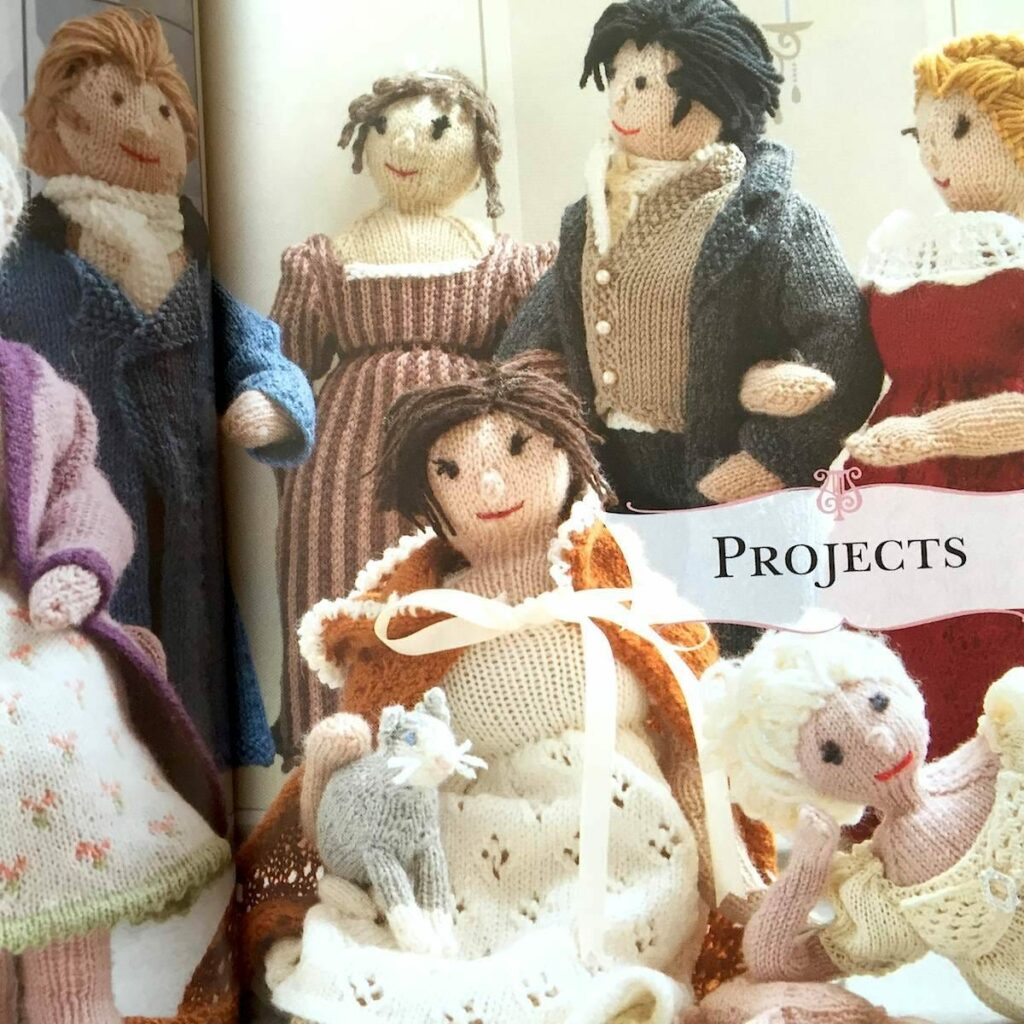
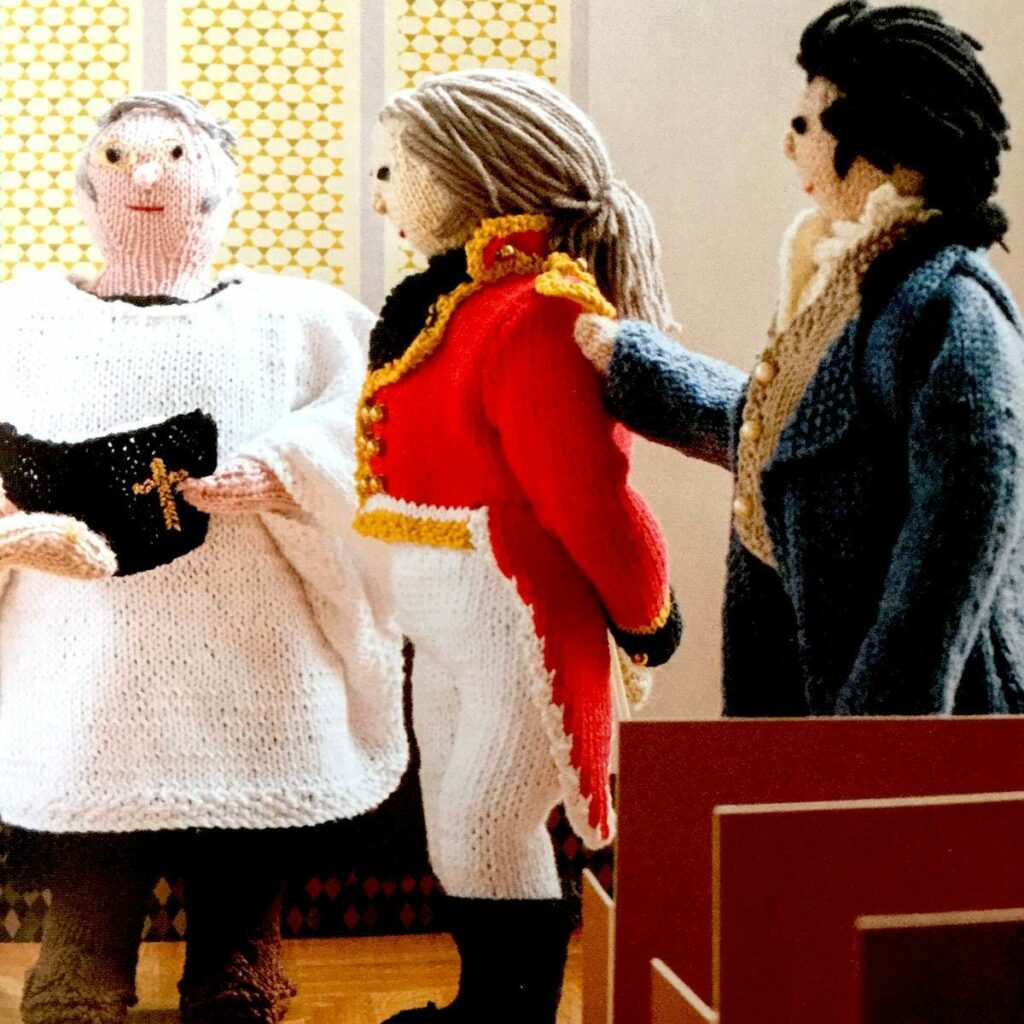
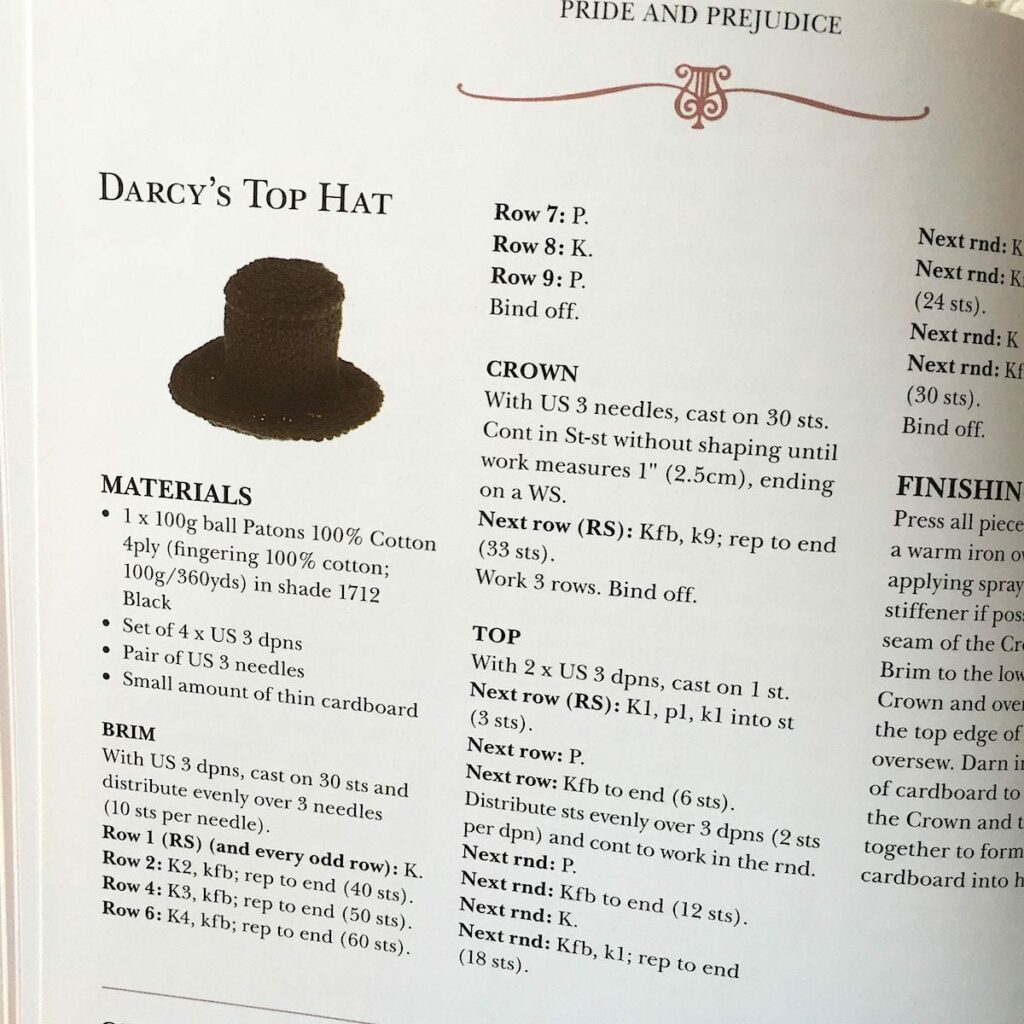
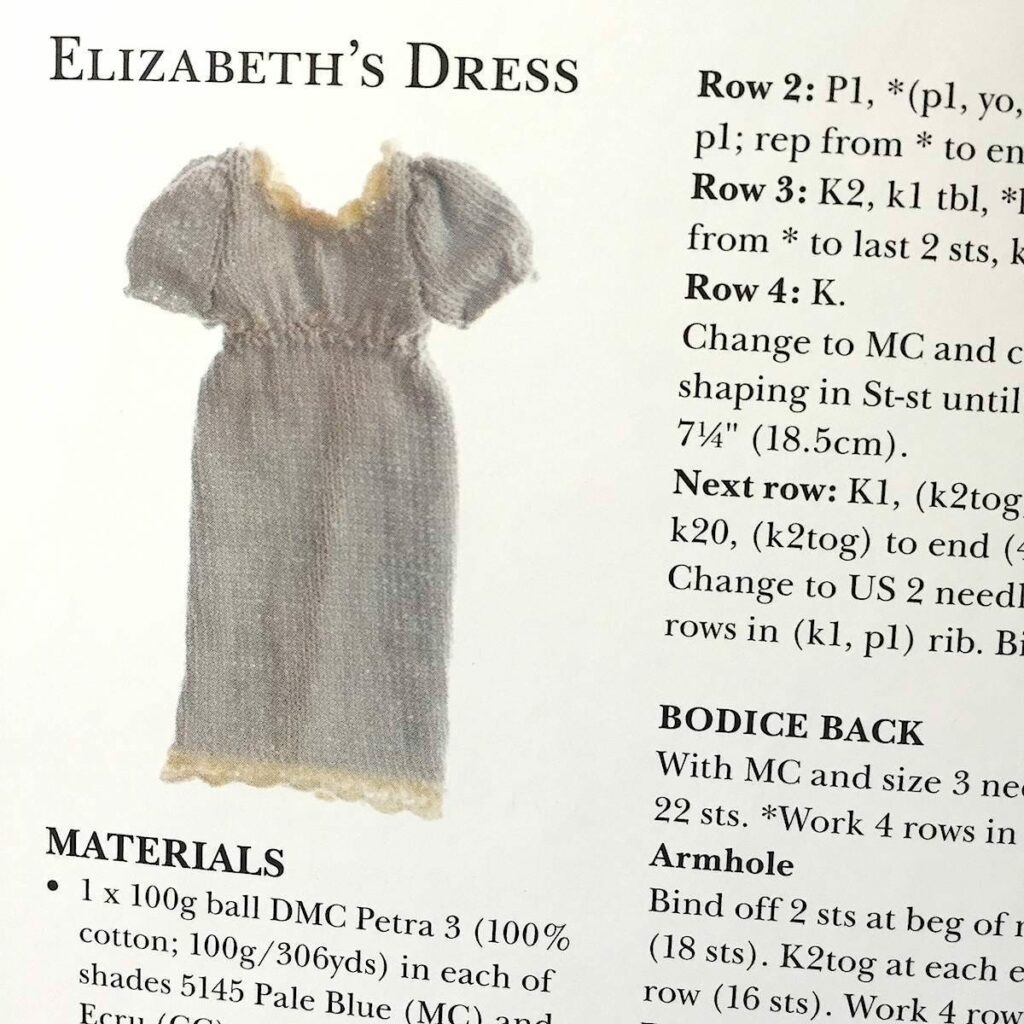
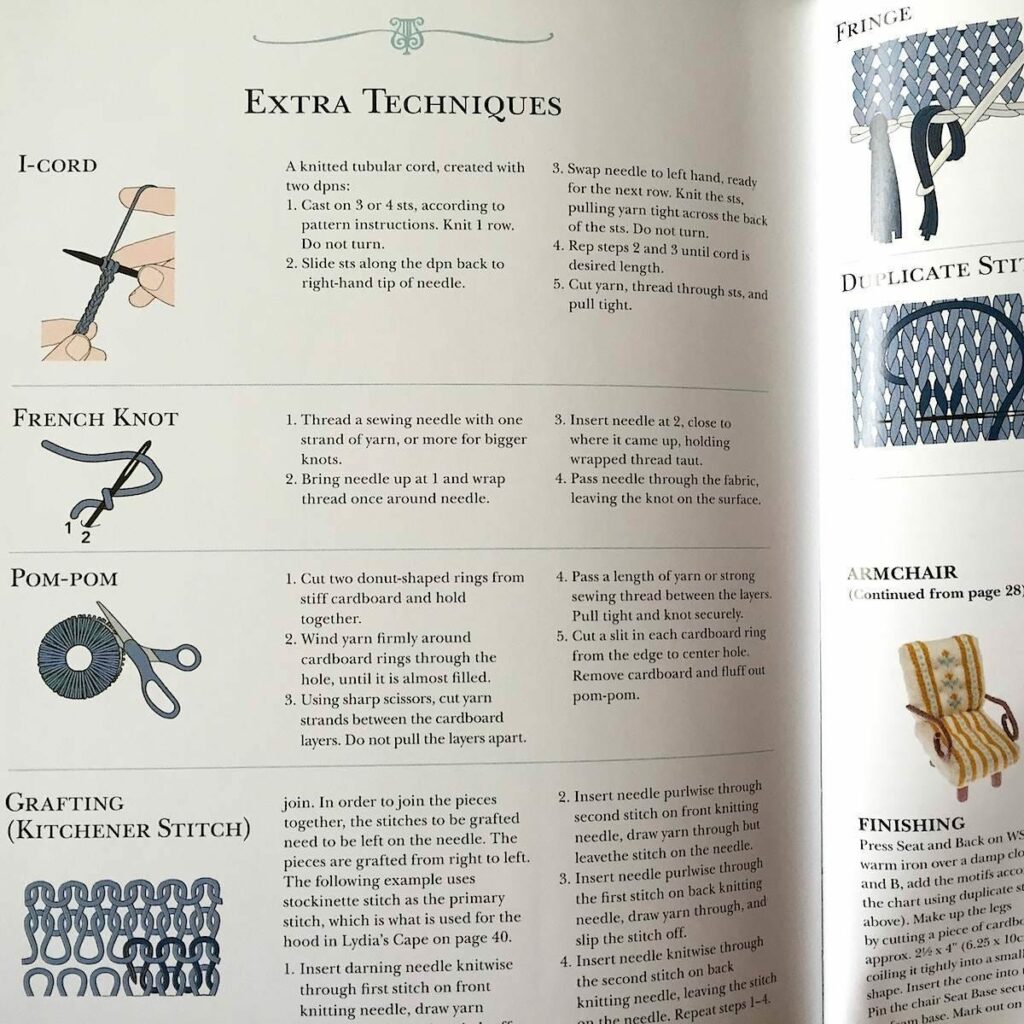
What’s the perfect book for a crafty, British literature fan with a sense of humor? It’s Pride & Preju-Knits of course! “This book is my life!” my 20-year-old daughter exclaimed when she opened up this adorable do-it-yourself paperback. “I love the fact that they give you just a few simple figures to make, and then so, so many clothing options.”
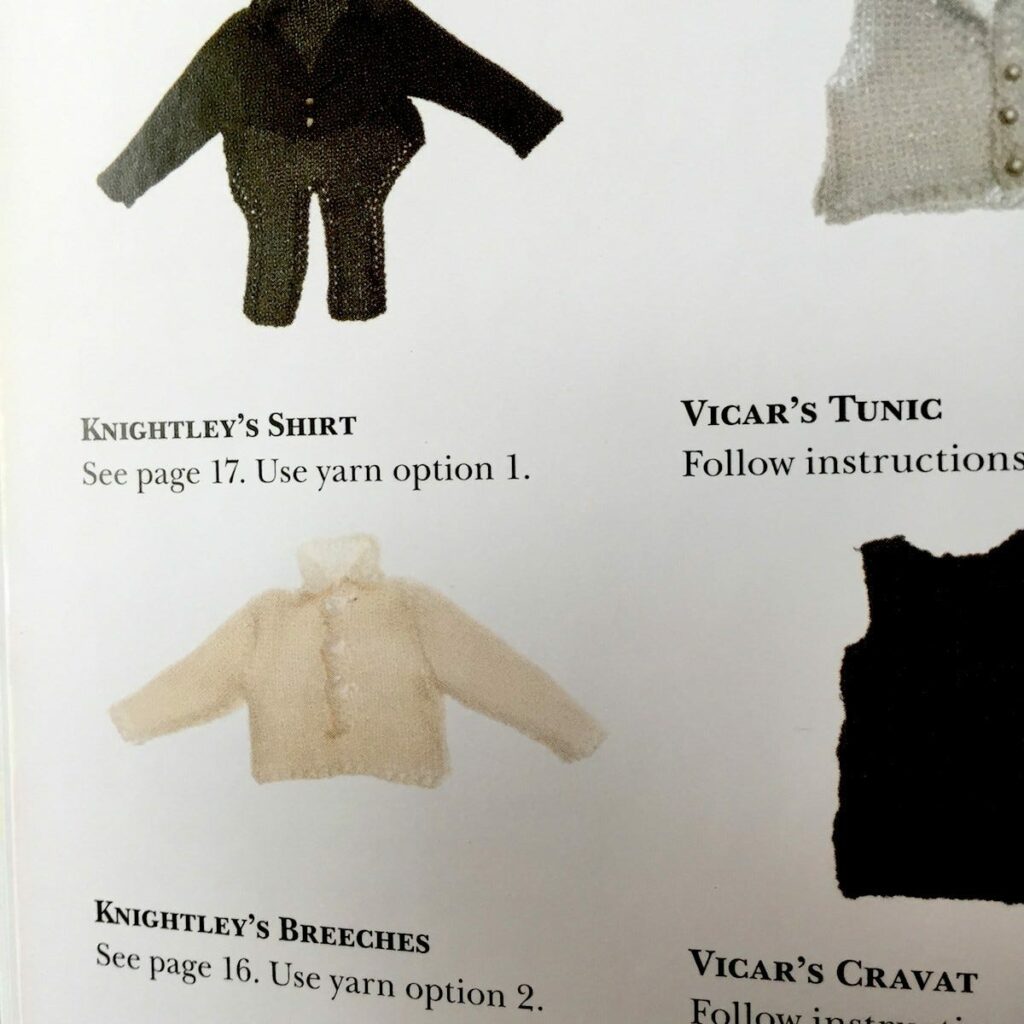
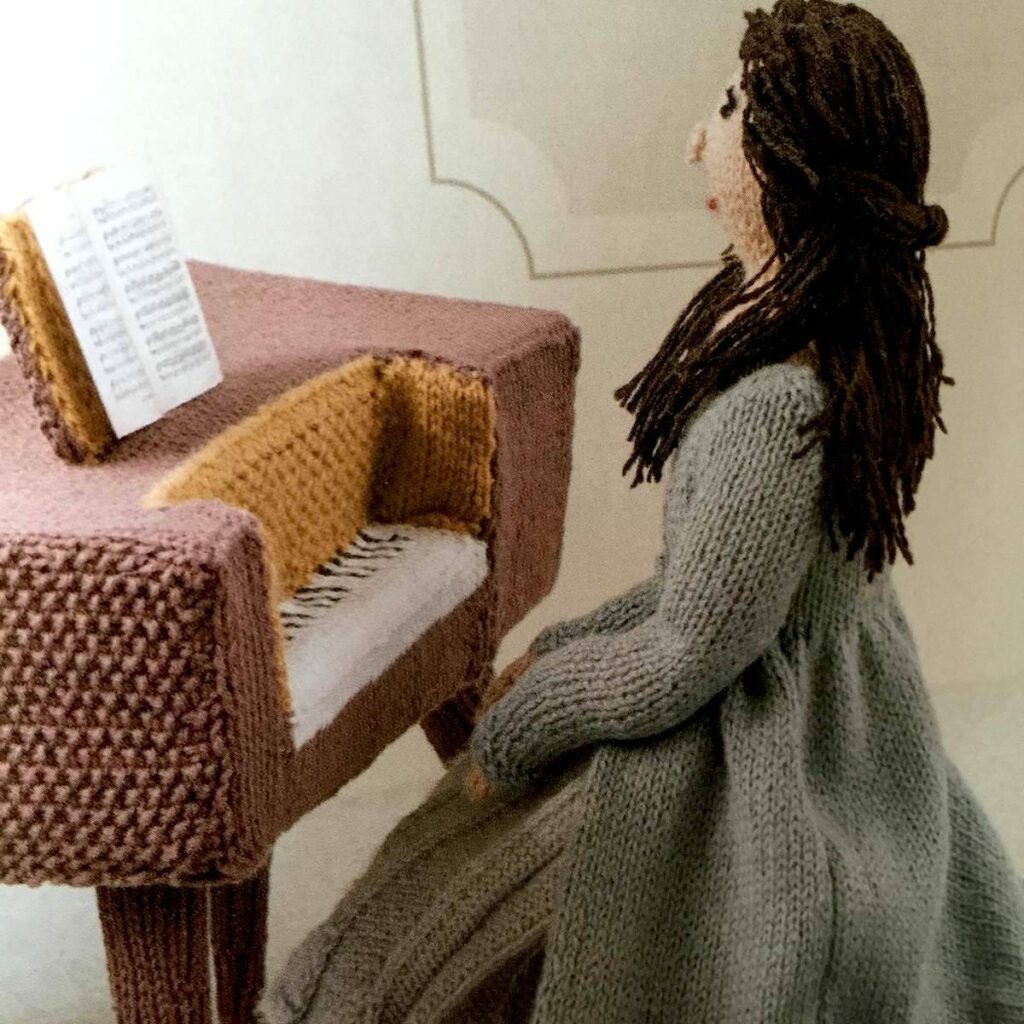
Pride & Preju-Knits contains 12 knitting projects (scenes) based on Austen’s six novels. Every element in these scenes can be knit, including main characters, accessories, animals and furniture. There are detailed instructions on how to knit Regency ladies and gentlemen, how to knit Elizabeth Bennet’s dress and Mr. Darcy’s trousers from Pride and Prejudice, and even how to knit the pianoforte played by Anne Elliot in Persuasion. You can also learn to knit sheep from Sense and Sensibility and for Emma Woodhouse’s wedding dress from Emma. Instructions include the materials, the gauge and how to finish off the piece. Trixie von Purl (aka Geraldine Warner) briefly recaps each Austen novel as well. Although these are very intricate projects, anyone can appreciate the imaginative handiwork and enjoy this charming little book. – Carole Rosner
Books That Belong On Paper first appeared on the web as Wink Books and was edited by Carla Sinclair.Sign up here to get the issues a week early in your inbox.

 Image from Family Handyman